Tips for Formatting Emails on Your Phone


Mobile Email Editor FAQ: Formatting on the Go

When you are writing emails on your phone, the format menu bar is hidden to give you more room to type. However, you can still easily format your text, create lists, and apply styles using standard mobile gestures and simple typing shortcuts.

📋 Formatting Shortcuts (Cheatsheet)

ActionHow to do it on Mobile
Bold TextSelect the text → Tap Bold (or B) in your phone’s popup menu.
Italic TextSelect the text → Tap Italics (or I) in your phone’s popup menu.
Bulleted ListType an asterisk (*) or a hyphen (-) followed by a space.
Numbered ListType 1. followed by a space.
Indent a List (Next Level)Press the Tab key on your virtual keyboard (if available) or type a space before your list shortcut.
Undo / RedoiPhone: Shake your phone or swipe left with three fingers.
Android: Tap the undo/redo arrows on your keyboard’s toolbar.

💬 Frequently Asked Questions

How do I bold or italicize text without a menu bar?

Instead of using keyboard shortcuts like Cmd + B, use your phone’s built-in text selection menu:

  1. Double-tap a word (or press and hold) to select it.
  2. Drag the handles to highlight the text you want to format.
  3. A menu bar will pop up right above the text (where “Copy/Paste” usually appears).
  4. Tap Format, BIU, or the three dots (More) to find the Bold or Italic options.

How do I start a bulleted or numbered list?

The editor recognizes smart typing shortcuts. Start a new line and type:

  • For Bullets: Type * or - and then press the Spacebar. The character will instantly turn into a bullet point.
  • For Numbers: Type 1. and then press the Spacebar.

How do I add another item to my list?

Just press the Return / Enter key on your mobile keyboard. A new bullet or the next number will automatically appear.

How do I finish my list and go back to normal typing?

When you are at the end of your list, press the Return / Enter key twice in a row. The empty bullet or number will disappear, and you can type regular paragraphs again.
PSMailbox iOS updates

PSMailbox iOS apps were updated to our latest version to support all the privacy features provided Apple in their iOS apps ecosystem. There are also two new features that are highlighed here

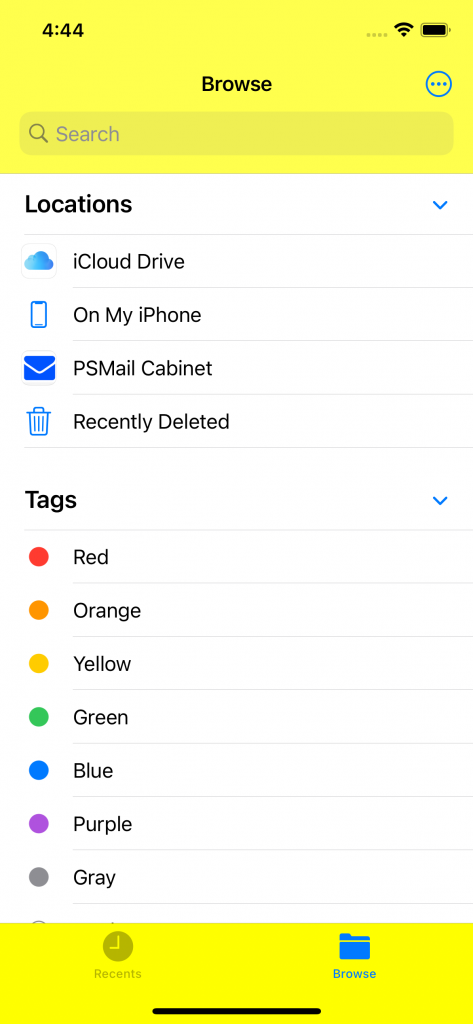
  1. Cabinet availability in Files app

Apple’s iOS devices provide a File app which allows you to connect to “Cloud Storage” such as iCloud. PSMailbox app now publishes the documents, pictures, videos and other resources stored in PSMail Cabinet to be visible in the Files app. Please see the screenshot below as to where to access these resources when in iPhone or iPad’s native Files app

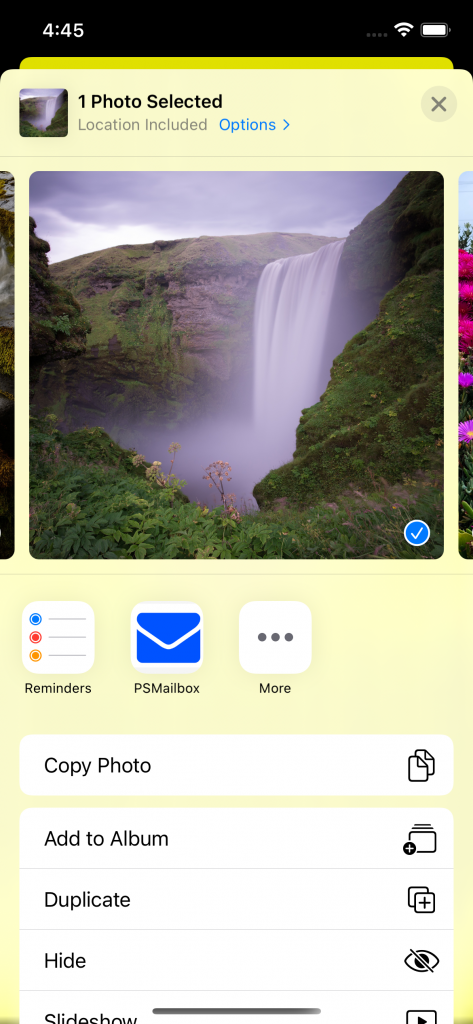
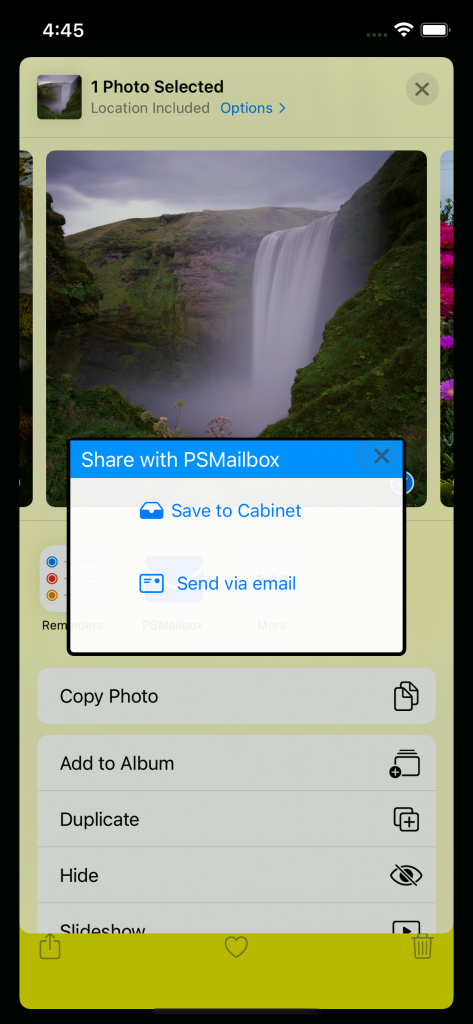
2. Sharing pictures, videos, files from device to Cabinet cloud

iOS devices also provide aa simple way to use the “share” icon to share an image or a document to other users either via email or into a cloud storage. If you have PSMailbox app on your iOS device, you can quickly share these Photos or other resources, by choosing PSMailbox as an option after click on “share” icon. See screenshot below for details.

SETUP: ActiveSync using Windows phone

Windows phones and PSMail support Microsoft’s ActiveSync protocol to get push notifications from your PSMail account on your mobile devices.  Setting up your windows phone to read and work with PSMail is easy and simple.  In a few steps you will have your account working with our reliable server and the well supported ActiveSync protocol on Windows systems.

Continue reading SETUP: ActiveSync using Windows phone

SETUP: ActiveSync using iPhone/iPad

iPhone/iPad and PSMail support Microsoft’s ActiveSync protocol to get push notifications from your PSMail account on your mobile devices. Instructions for configuring your iPhone to PSMail are as follows. (Note: While these screenshots are from the iPhone, an iPad can be set up using the same instructions.)

Continue reading SETUP: ActiveSync using iPhone/iPad

What is Mobile VPN?

Mobile VPN is the VPN (Virtual Private Network) service provided by PSMail. VPN is a private network system that uses the public internet to “tunnel” traffic secretly and securely from your PC/phone to a computer network. This allows you to safely access your PSMailbox and other Internet resources from a limited or unsecure network connection (ex. public wireless or internet cafe). Continue reading What is Mobile VPN?