When you receive a very large email (over 5 MB, for example), the process to download it can take a long time, especially if your Internet connection is slow. Aside from forcing you to wait to read the message, this can cause problems with your inbox as it clogs things up and monopolizes your computer’s attention. Occasionally, your inbox can even freeze, locking up the downloading process and forcing you to start again. In order to address this, PSMail introduced archiving, an option where a large message intended for you can be saved on our system and accessed directly through a link. This prevents the long download times and protects your inbox from a large message that could take up an inordinate amount of space. Continue reading What is archived email and how can I access it?
Tag: folder full
My quota is full what should I do?
How to Manage Your Email Quota (IMAP & Webmail Users)
Managing your email quota is essential to ensure you can continue sending and receiving messages without interruption. This guide explains practical steps for both IMAP users (such as Outlook) and webmail users to help keep your mailbox size under control.
Why Quota Management Matters
Every email account has a storage limit (quota). When your mailbox exceeds this limit, you may stop receiving new emails or encounter sending issues. To avoid this, it’s best to regularly clean up or move emails and keep your usage below 75% of your total quota.
For IMAP Users (e.g., Outlook)
When using IMAP, your emails are stored on the mail server. Simply organizing messages into folders within your mailbox does not reduce your quota usage. To free up space, you need to move emails to local folders stored on your computer.
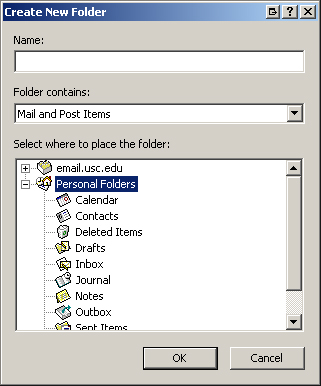
Create Local (Personal) Folders
- Open Outlook.
- Go to File → New → Folder.
- In the window that appears:
- Select Personal Folders.
- Enter a name (e.g., Archive).
- Ensure Mail and Post Items is selected.
- Click OK.
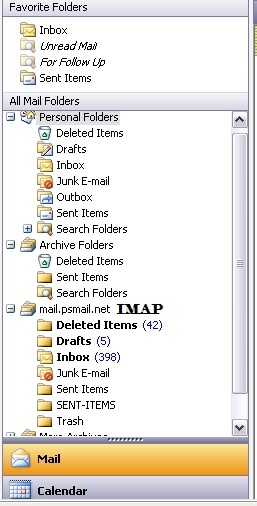
You’ll now see your new folder under Personal Folders, separate from your IMAP folders (which are stored on the server).
Tip: IMAP folders are typically listed under your mail server (e.g., mail.psmail.net), while local folders appear under “Personal Folders.”
Move Emails to Local Storage
To reduce server usage:
- Move individual emails:
- Drag and drop messages into your local folder, or
- Use Edit → Move to Folder
- Move entire folders:
- Open the IMAP folder
- Select any message
- Click Edit → Select All
- Drag all messages to your local folder or use Move to Folder
Once moved, these emails are stored on your computer and no longer count toward your quota.
For Webmail Users
If you access email through webmail, you can manage your quota directly from the browser.
Find and Remove Large Emails
- Log in to webmail.
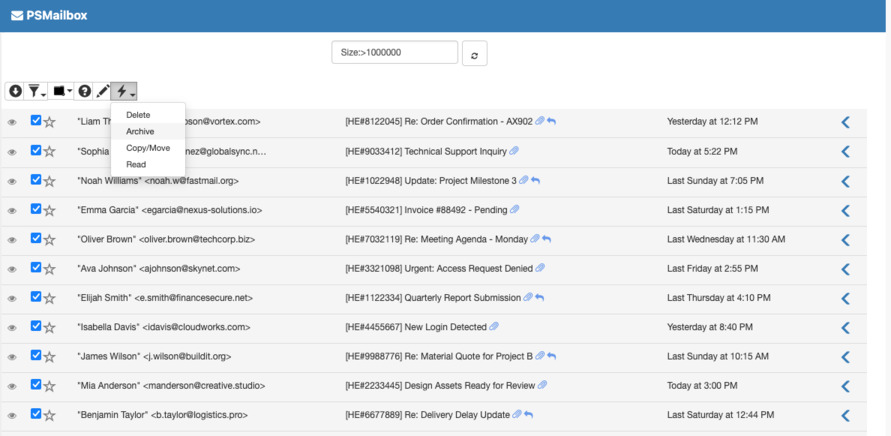
- Use the search feature with:
"Size:>1000000"This finds emails larger than 10 MB. Learn more about Search - Review the results and:
- Download important emails and attachments
- Delete unnecessary messages
Use the Archive Feature
If you want to keep emails on the server without affecting your quota:
- Select emails using the checkboxes
- Click the Action (lightning icon)
- Choose Archive
Archived emails:
- Do not count toward your quota
- Can be accessed later when needed
Check Your Quota Usage
Regular monitoring helps prevent issues.
Steps to Check:
- Log in to: https://mail.psmail.net
- Click Manage (or Manage Account in older versions)
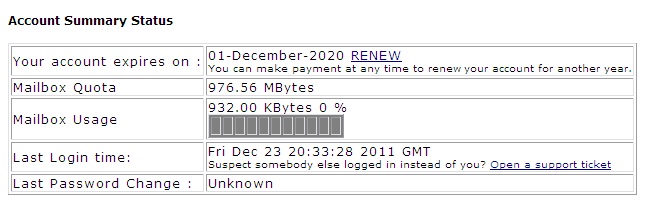
- Select View Account Status
You’ll see a usage bar indicating how much of your quota is used.
Best practice: Keep your usage below 75% to avoid disruptions.
Best Practices Summary
- Regularly delete unnecessary emails
- Move older messages to local folders (IMAP users)
- Search for and manage large attachments
- Use the archive feature in webmail
- Check your quota usage frequently
By following these steps, you can keep your mailbox organized, efficient, and well within quota limits.