My quota is full what should I do?

How to Manage Your Email Quota (IMAP & Webmail Users)

Managing your email quota is essential to ensure you can continue sending and receiving messages without interruption. This guide explains practical steps for both IMAP users (such as Outlook) and webmail users to help keep your mailbox size under control.


Why Quota Management Matters

Every email account has a storage limit (quota). When your mailbox exceeds this limit, you may stop receiving new emails or encounter sending issues. To avoid this, it’s best to regularly clean up or move emails and keep your usage below 75% of your total quota.


For IMAP Users (e.g., Outlook)

When using IMAP, your emails are stored on the mail server. Simply organizing messages into folders within your mailbox does not reduce your quota usage. To free up space, you need to move emails to local folders stored on your computer.

Create Local (Personal) Folders

  1. Open Outlook.
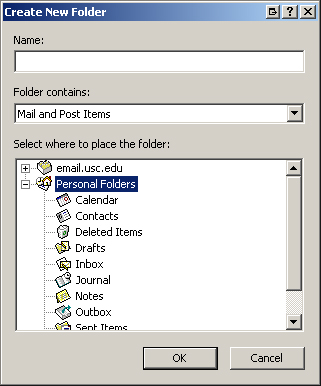
  2. Go to File → New → Folder.
  3. In the window that appears:
    • Select Personal Folders.
    • Enter a name (e.g., Archive).
    • Ensure Mail and Post Items is selected.
  4. Click OK.

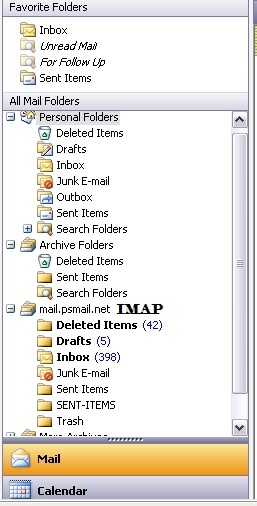
You’ll now see your new folder under Personal Folders, separate from your IMAP folders (which are stored on the server).

Tip: IMAP folders are typically listed under your mail server (e.g., mail.psmail.net), while local folders appear under “Personal Folders.”

Move Emails to Local Storage

To reduce server usage:

  • Move individual emails:
    • Drag and drop messages into your local folder, or
    • Use Edit → Move to Folder
  • Move entire folders:
    1. Open the IMAP folder
    2. Select any message
    3. Click Edit → Select All
    4. Drag all messages to your local folder or use Move to Folder

Once moved, these emails are stored on your computer and no longer count toward your quota.

For Webmail Users

If you access email through webmail, you can manage your quota directly from the browser.

Find and Remove Large Emails

  1. Log in to webmail.
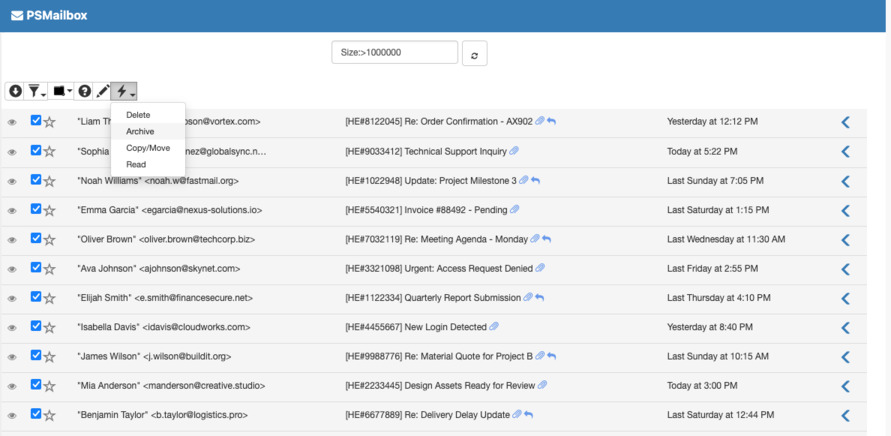
  2. Use the search feature with: "Size:>1000000" This finds emails larger than 10 MB. Learn more about Search
  3. Review the results and:
    • Download important emails and attachments
    • Delete unnecessary messages

Use the Archive Feature

If you want to keep emails on the server without affecting your quota:

  1. Select emails using the checkboxes
  2. Click the Action (lightning icon)
  3. Choose Archive

Archived emails:

  • Do not count toward your quota
  • Can be accessed later when needed

Screenshot

Check Your Quota Usage

Regular monitoring helps prevent issues.

Steps to Check:

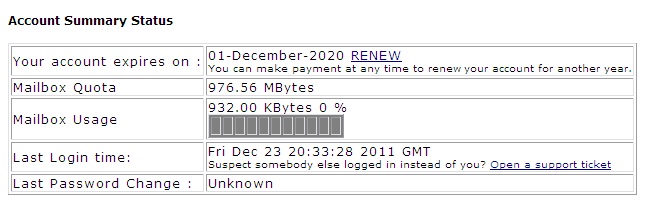
  1. Log in to: https://mail.psmail.net
  2. Click Manage (or Manage Account in older versions)
  3. Select View Account Status

You’ll see a usage bar indicating how much of your quota is used.

Best practice: Keep your usage below 75% to avoid disruptions.

Best Practices Summary

  • Regularly delete unnecessary emails
  • Move older messages to local folders (IMAP users)
  • Search for and manage large attachments
  • Use the archive feature in webmail
  • Check your quota usage frequently

By following these steps, you can keep your mailbox organized, efficient, and well within quota limits.

How can I get daily (instead of weekly) alerts on emails quarantined by the SPAM filter?

When PSMail’s SPAM filter identifies a problem message, it does not completely delete it right away. Instead, it removes it from your inbox and “quarantines” it, keeping it safe and harmless until you can confirm that it is indeed SPAM. This prevents important messages that are accidentally identified as SPAM from being inadvertantly deleted. Continue reading How can I get daily (instead of weekly) alerts on emails quarantined by the SPAM filter?

Why is my VPN not routing my internet traffic even though it says that I’m connected?

Windows Vista and Windows 7 users sometimes experience trouble connecting to the Internet through their VPN. Though the VPN icon shows “green” (connected), their Internet activity is not actually routing through the secure network. The reason for this is that in order for OpenVPN to route traffic correctly, users must run it as an administrator. The following are several solutions for correcting this issue and simplifying the use of OpenVPN. Continue reading Why is my VPN not routing my internet traffic even though it says that I’m connected?

Why are my outgoing messages failing to send from iMail (MAC OS X)?

Often this indicates a problem with your settings either after a recent software update or from a plugin software like antivirus. Follow these steps to ensure that your account is set up correctly.  On a Mac, it is also highly recommended that you DISABLE “automatically manage connection settings” option. As this settings can reset your outgoing settings to a non-work default values.

Follow these steps to setup the correct outgoing settings Continue reading Why are my outgoing messages failing to send from iMail (MAC OS X)?

Is my email secure?

“Secure email” can sometimes be a slippery term. What exactly does it mean? How secure is my communication really?

There are different levels of security and privacy for email, and there are also different ways of providing it. Some technologies focus only on specific aspects of the email process and others were created to defend against specific threats. For your own peace of mind and confidence, its important to know just what is meant when we at PSMail claim to provide secure email services.

Continue reading Is my email secure?

How can I reset my Safari browser so I can send email again?

Safari browser on Mac OS X can stop sending email when using PSMail’s webmail.  The symptoms are when you try to hit “Send it” button on PSMail’s Compose Mail page – nothing happens.  Here’s how to reset Safari browser and get it working again:

Continue reading How can I reset my Safari browser so I can send email again?

Can I use PSMail’s VPN to access the Internet via my home country?

PSVPN’s default configuration provides Internet access via either Canada or the US (depending on several factors). It is possible, however, to configure your VPN to terminate to a PSMail server in a specific country every time you connect. Currently, this can be done for three countries: the US, UK, and Canada. (NOTE: Our servers on the European mainland and in Asia are still under beta testing. We can make these available to users who are intersted in testing them early. Just write us through our contact page if you are interested.) Continue reading Can I use PSMail’s VPN to access the Internet via my home country?

How can I prevent my newsletter/PSMail Lists emails from being blocked as spam?

One problem that arises with spam filters and blockers is that legitimate emails are sometimes accidentally identified as spam. This article explains how to prevent your outgoing mailings, such as newsletters or PSMail List emails, from being blocked by your recipients’ spam filters. If you have questions about accidentally blocked incoming messages, please follow this link.

Continue reading How can I prevent my newsletter/PSMail Lists emails from being blocked as spam?

How can I have someone else renew my PSMail acount while I’m away?

Information for having someone else renew your account.

If you are having someone else pay for your account (like family or a friend) while you are travelling, have them follow these steps:

Continue reading How can I have someone else renew my PSMail acount while I’m away?